> ## Documentation Index
> Fetch the complete documentation index at: https://strapi-suite.littlebox.pt/llms.txt
> Use this file to discover all available pages before exploring further.
# Tabs
> Learn how to organize the fields of a content type in tabs and how they are returned by the API
Content types with many fields quickly turn into a long form that is hard to fill in. Tabs group the fields of a
collection type or a single type, so the editor shows one group at a time. The same groups are kept in the API: the
fields of each tab are returned inside a property named after the tab, which makes the response easier to consume on
the frontend.
## How to create tabs?
**Step 1**: Access the Strapi admin panel.\
**Step 2**: Go to the Content-Type Builder.\
**Step 3**: Select the collection type or single type, for example `Pages`, and click "Edit".\
**Step 4**: Open "Advanced settings".\
**Step 5**: Under "Tabs", click "Add tab" and give it a name. Repeat for every tab you need.\
**Step 6**: Click "Finish".
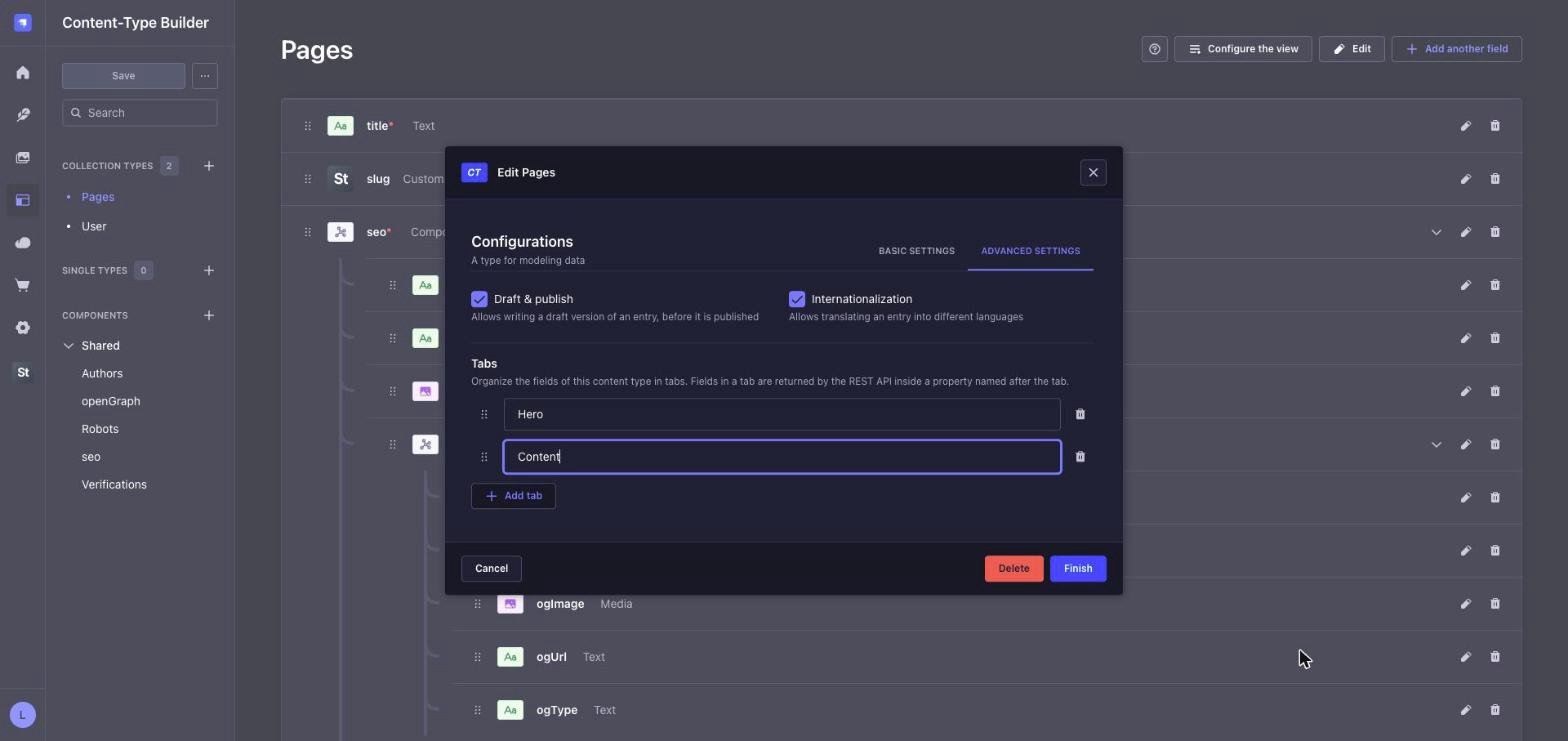 Tabs can be renamed at any time, reordered by dragging the handle on the left of each row, and removed with the trash
icon. The order of the list is the order in which the tabs appear in the editor.
Every tab needs a name, and two tabs cannot share the same API key (see [API](#api)). The form shows an error until
this is fixed.
## How to add fields to a tab?
**Step 1**: Click "Add another field", or the edit icon of an existing field.\
**Step 2**: Open "Advanced settings".\
**Step 3**: In "Tab", pick the tab where the field is shown.\
**Step 4**: Click "Finish".
Tabs can be renamed at any time, reordered by dragging the handle on the left of each row, and removed with the trash
icon. The order of the list is the order in which the tabs appear in the editor.
Every tab needs a name, and two tabs cannot share the same API key (see [API](#api)). The form shows an error until
this is fixed.
## How to add fields to a tab?
**Step 1**: Click "Add another field", or the edit icon of an existing field.\
**Step 2**: Open "Advanced settings".\
**Step 3**: In "Tab", pick the tab where the field is shown.\
**Step 4**: Click "Finish".
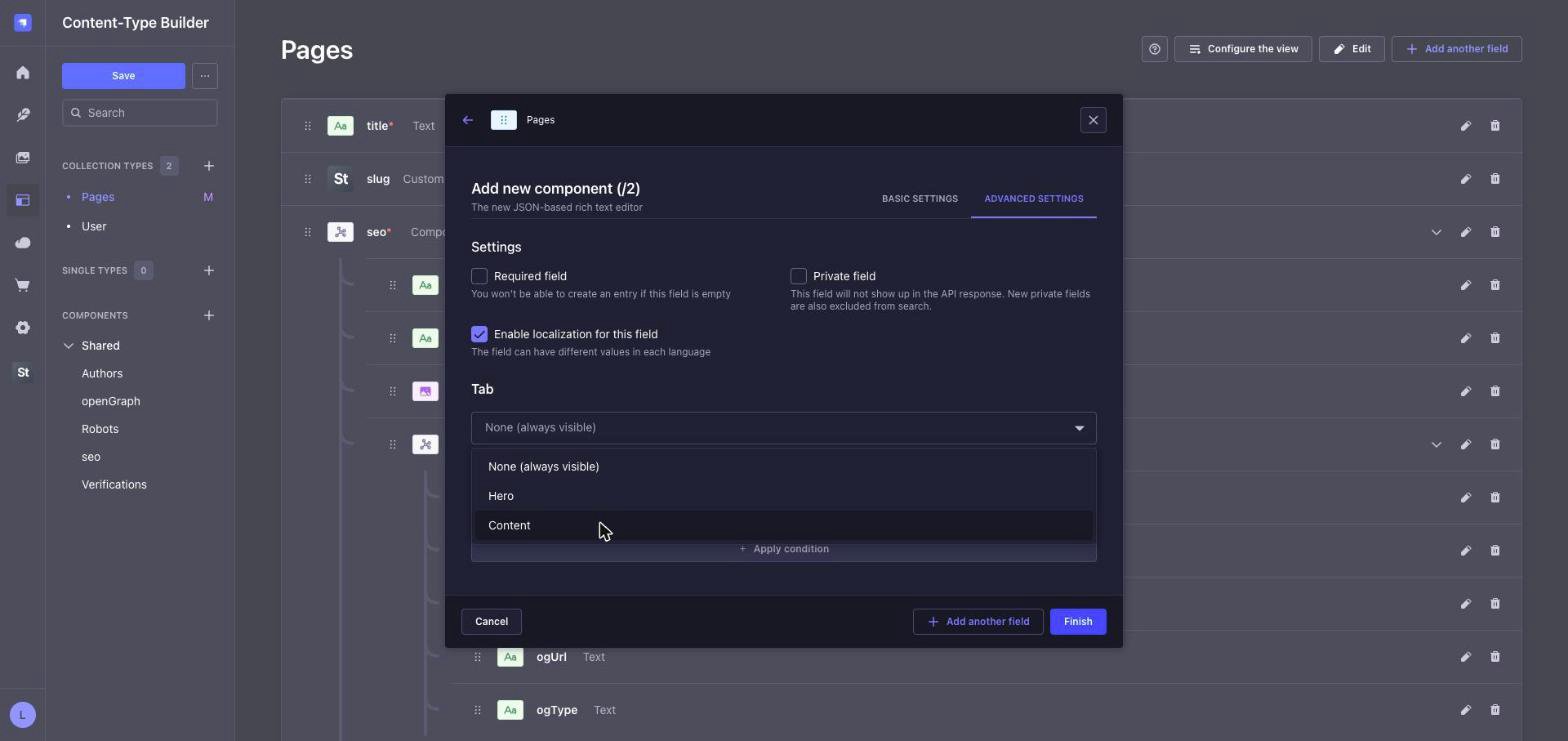 **Step 5**: Click "Save" to apply the changes to the content type.
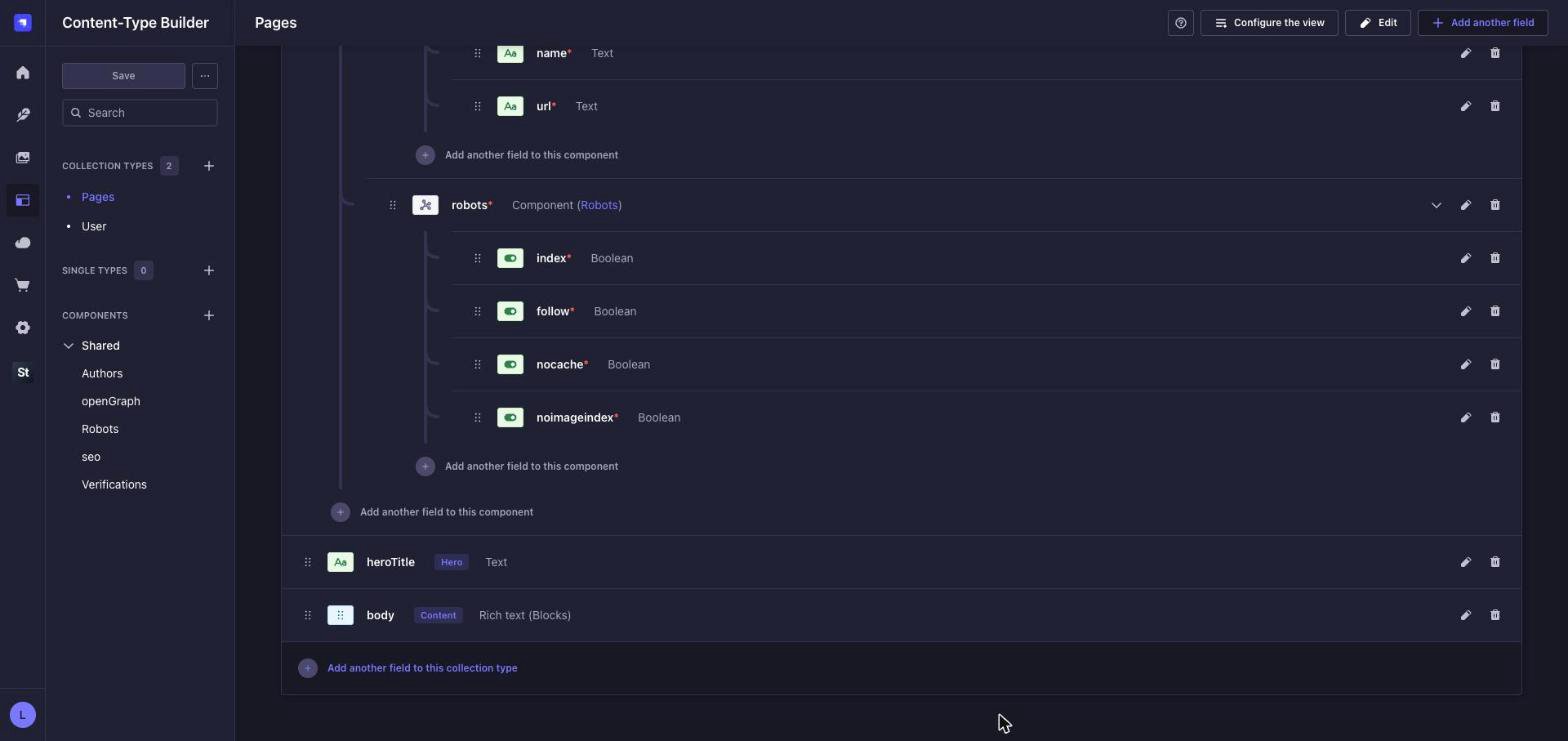
The field list shows the tab of each field next to its name.
**Step 5**: Click "Save" to apply the changes to the content type.
The field list shows the tab of each field next to its name.
 Any field can be placed in a tab: text, rich text, numbers, dates, media, relations, components, dynamic zones and
custom fields. Fields left with "None (always visible)" are not part of any tab.
When a tab is removed, the fields that were in it are not deleted. They simply stop belonging to a tab and become
always visible.
## Editing content
In the Content Manager, the fields without a tab are shown first, followed by a bar with the tabs and the
fields of the active tab.
Any field can be placed in a tab: text, rich text, numbers, dates, media, relations, components, dynamic zones and
custom fields. Fields left with "None (always visible)" are not part of any tab.
When a tab is removed, the fields that were in it are not deleted. They simply stop belonging to a tab and become
always visible.
## Editing content
In the Content Manager, the fields without a tab are shown first, followed by a bar with the tabs and the
fields of the active tab.
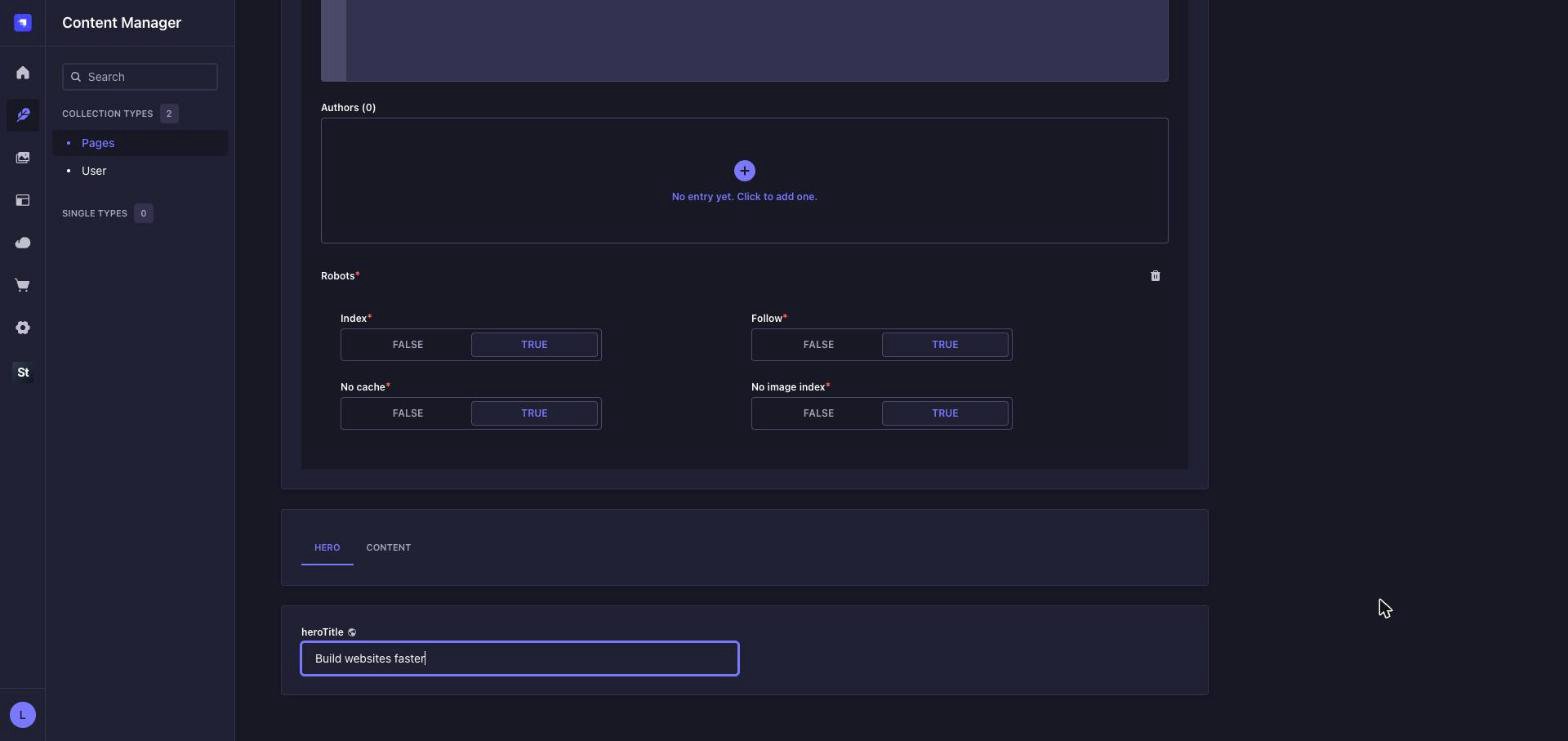 Switching tabs keeps the changes that were not saved yet, so a document can be filled in across several tabs and saved
once. The active tab is kept in the URL, as `#ltbTab=content`, which means a link to the document can open it directly
on a given tab.
## API
The fields of each tab are returned inside a property named after the tab. The name is turned into a key: it is
converted to lowercase, accents are removed, spaces become `_` and any other special character is dropped. For
example, `Hero` becomes `hero` and `Loja - Vitrine` becomes `loja_vitrine`.
```bash theme={null}
curl -X GET "/api/pages/k5m5omxnuhvkt4b2qha0ljp4"
```
```json theme={null}
{
"data": {
"id": 1,
"documentId": "k5m5omxnuhvkt4b2qha0ljp4",
"title": "Homepage",
"hero": {
"heroTitle": "Build websites faster"
},
"content": {
"body": [
{
"type": "paragraph",
"children": [{ "type": "text", "text": "Lorem ipsum dolor sit amet." }]
}
]
}
}
}
```
The grouping applies to the `find` and `findOne` requests of the REST API and to the routes of the
[slug](/backend/guides/slug) module, such as `/api/littlebox-strapi-suite/modules/pages/home` and
`/api/littlebox-strapi-suite/modules/pages?slug=...`.
Renaming a tab changes its key in the API. Update the frontend whenever a tab is renamed.
* Only the root level of the response is grouped. `filters`, `sort`, `fields` and `populate` keep using the original
field names, for example `populate[0]=body`, not `content.body`.
* A tab whose key matches the name of a field, such as `title`, or a reserved key, such as `id`, `documentId` or
`locale`, is not grouped and a warning is written to the server log. In the field settings, these tabs are marked as
conflicting and cannot be picked.
* Writes through the REST API and GraphQL are not affected: fields are always sent with their original names.
Learn how our frontend streamlines integration with Strapi by automating repetitive tasks.
Explore our hosting solutions for staging and production environments.
This documentation is built and hosted on [Mintlify](https://mintlify.com), a developer documentation platform.
Switching tabs keeps the changes that were not saved yet, so a document can be filled in across several tabs and saved
once. The active tab is kept in the URL, as `#ltbTab=content`, which means a link to the document can open it directly
on a given tab.
## API
The fields of each tab are returned inside a property named after the tab. The name is turned into a key: it is
converted to lowercase, accents are removed, spaces become `_` and any other special character is dropped. For
example, `Hero` becomes `hero` and `Loja - Vitrine` becomes `loja_vitrine`.
```bash theme={null}
curl -X GET "/api/pages/k5m5omxnuhvkt4b2qha0ljp4"
```
```json theme={null}
{
"data": {
"id": 1,
"documentId": "k5m5omxnuhvkt4b2qha0ljp4",
"title": "Homepage",
"hero": {
"heroTitle": "Build websites faster"
},
"content": {
"body": [
{
"type": "paragraph",
"children": [{ "type": "text", "text": "Lorem ipsum dolor sit amet." }]
}
]
}
}
}
```
The grouping applies to the `find` and `findOne` requests of the REST API and to the routes of the
[slug](/backend/guides/slug) module, such as `/api/littlebox-strapi-suite/modules/pages/home` and
`/api/littlebox-strapi-suite/modules/pages?slug=...`.
Renaming a tab changes its key in the API. Update the frontend whenever a tab is renamed.
* Only the root level of the response is grouped. `filters`, `sort`, `fields` and `populate` keep using the original
field names, for example `populate[0]=body`, not `content.body`.
* A tab whose key matches the name of a field, such as `title`, or a reserved key, such as `id`, `documentId` or
`locale`, is not grouped and a warning is written to the server log. In the field settings, these tabs are marked as
conflicting and cannot be picked.
* Writes through the REST API and GraphQL are not affected: fields are always sent with their original names.
Learn how our frontend streamlines integration with Strapi by automating repetitive tasks.
Explore our hosting solutions for staging and production environments.
This documentation is built and hosted on [Mintlify](https://mintlify.com), a developer documentation platform.