

How to create tabs?
Step 1: Access the Strapi admin panel.Step 2: Go to the Content-Type Builder.
Step 3: Select the collection type or single type, for example
Pages, and click “Edit”.Step 4: Open “Advanced settings”.
Step 5: Under “Tabs”, click “Add tab” and give it a name. Repeat for every tab you need.
Step 6: Click “Finish”.
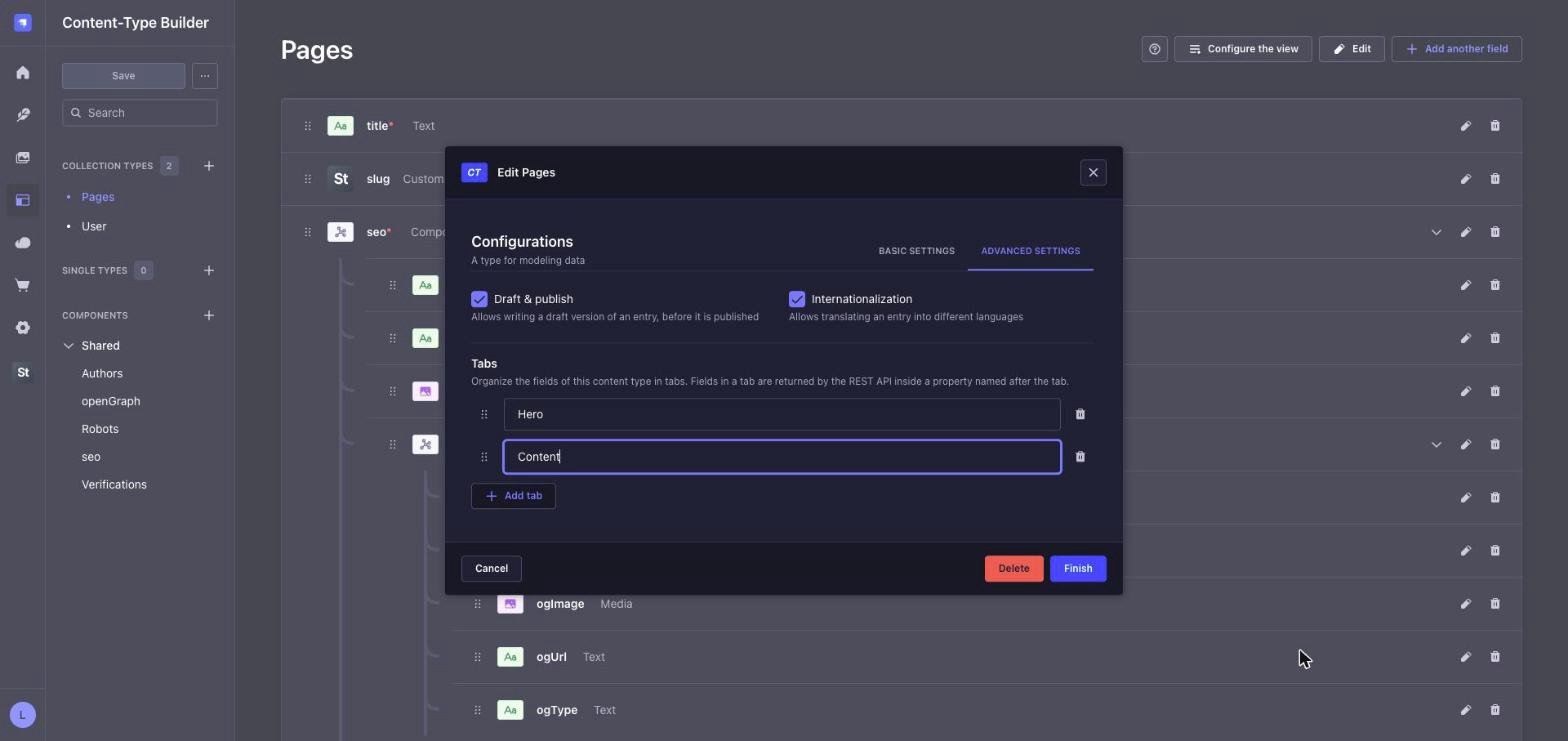
Every tab needs a name, and two tabs cannot share the same API key (see API). The form shows an error until
this is fixed.
How to add fields to a tab?
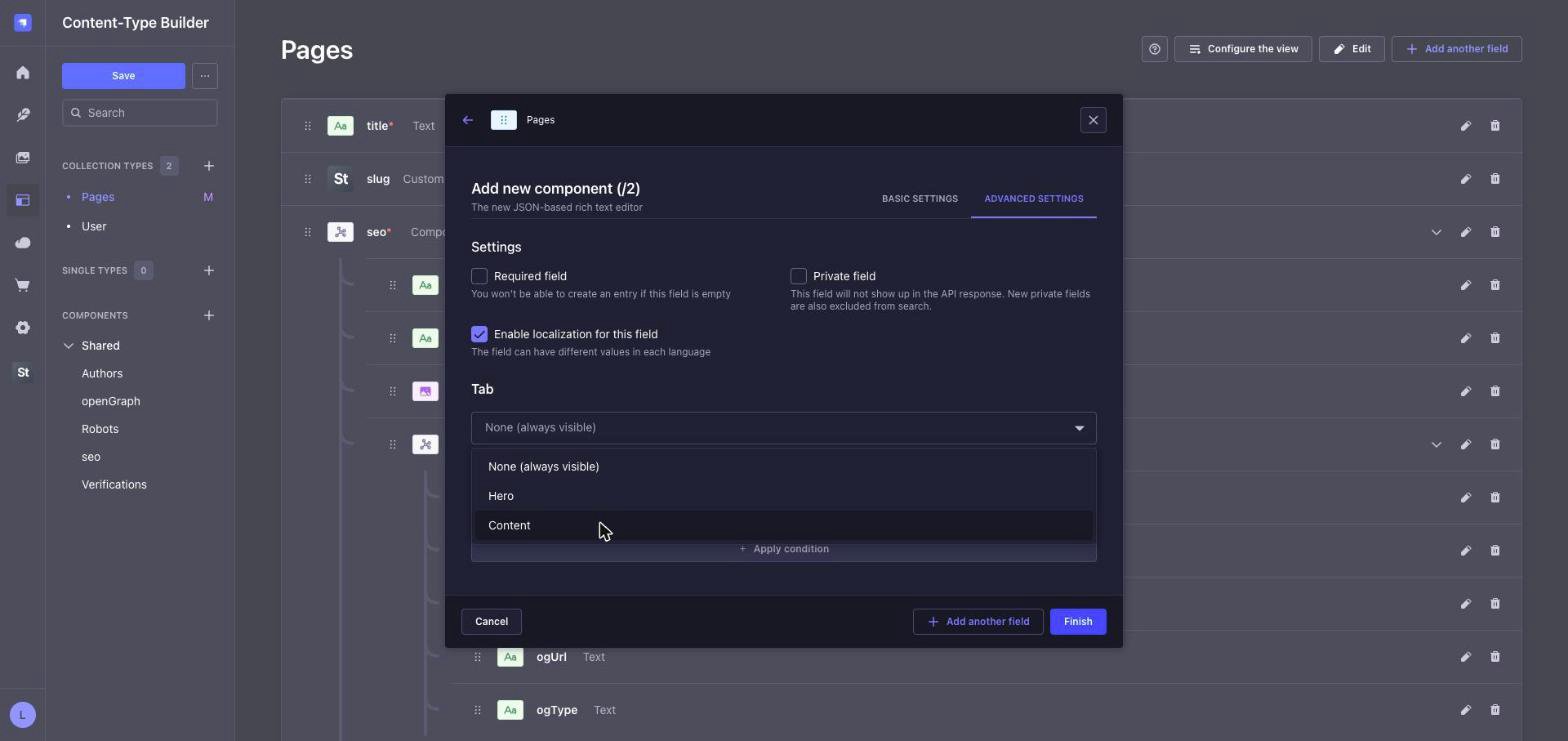
Step 1: Click “Add another field”, or the edit icon of an existing field.Step 2: Open “Advanced settings”.
Step 3: In “Tab”, pick the tab where the field is shown.
Step 4: Click “Finish”.
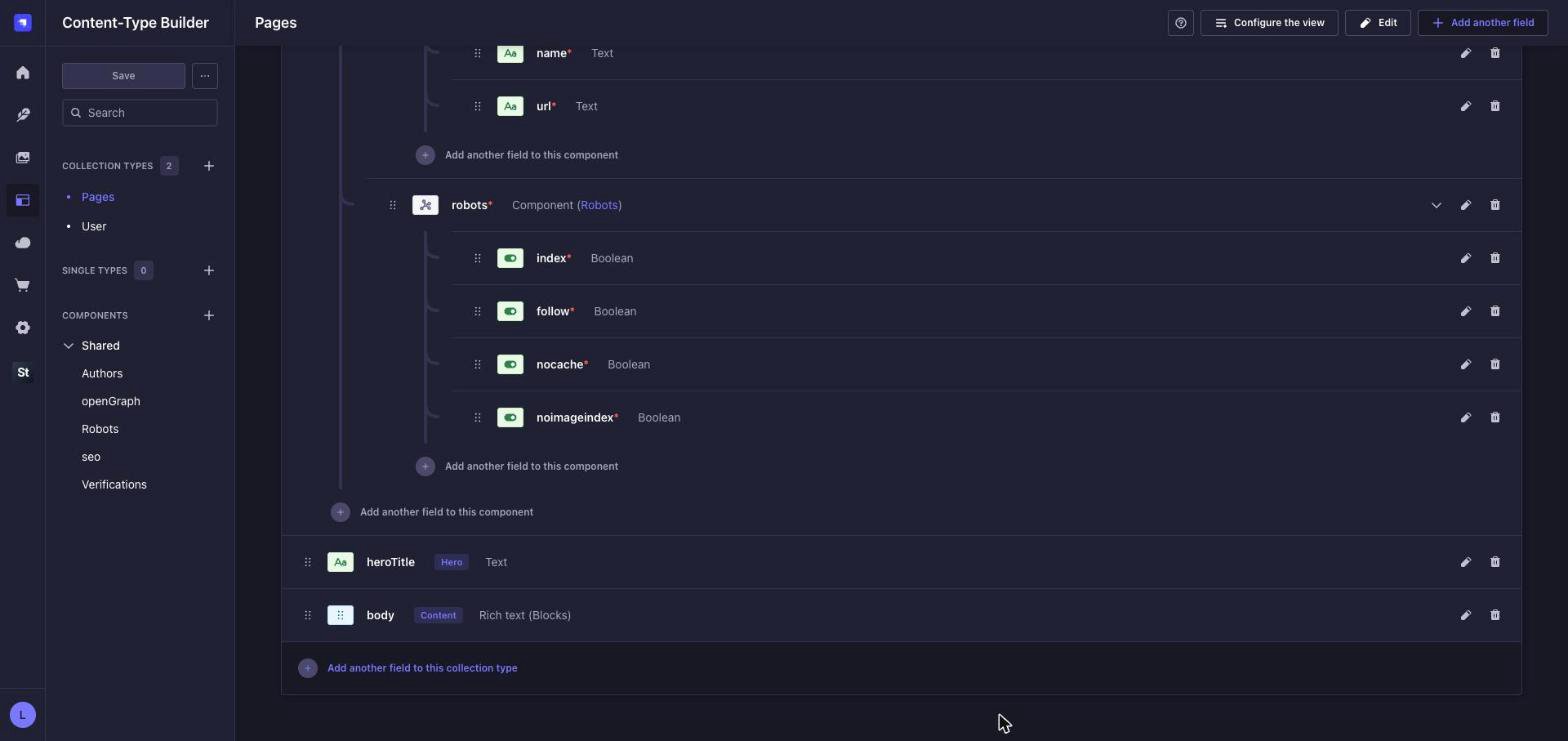
When a tab is removed, the fields that were in it are not deleted. They simply stop belonging to a tab and become
always visible.
Editing content
In the Content Manager, the fields without a tab are shown first, followed by a bar with the tabs and the fields of the active tab.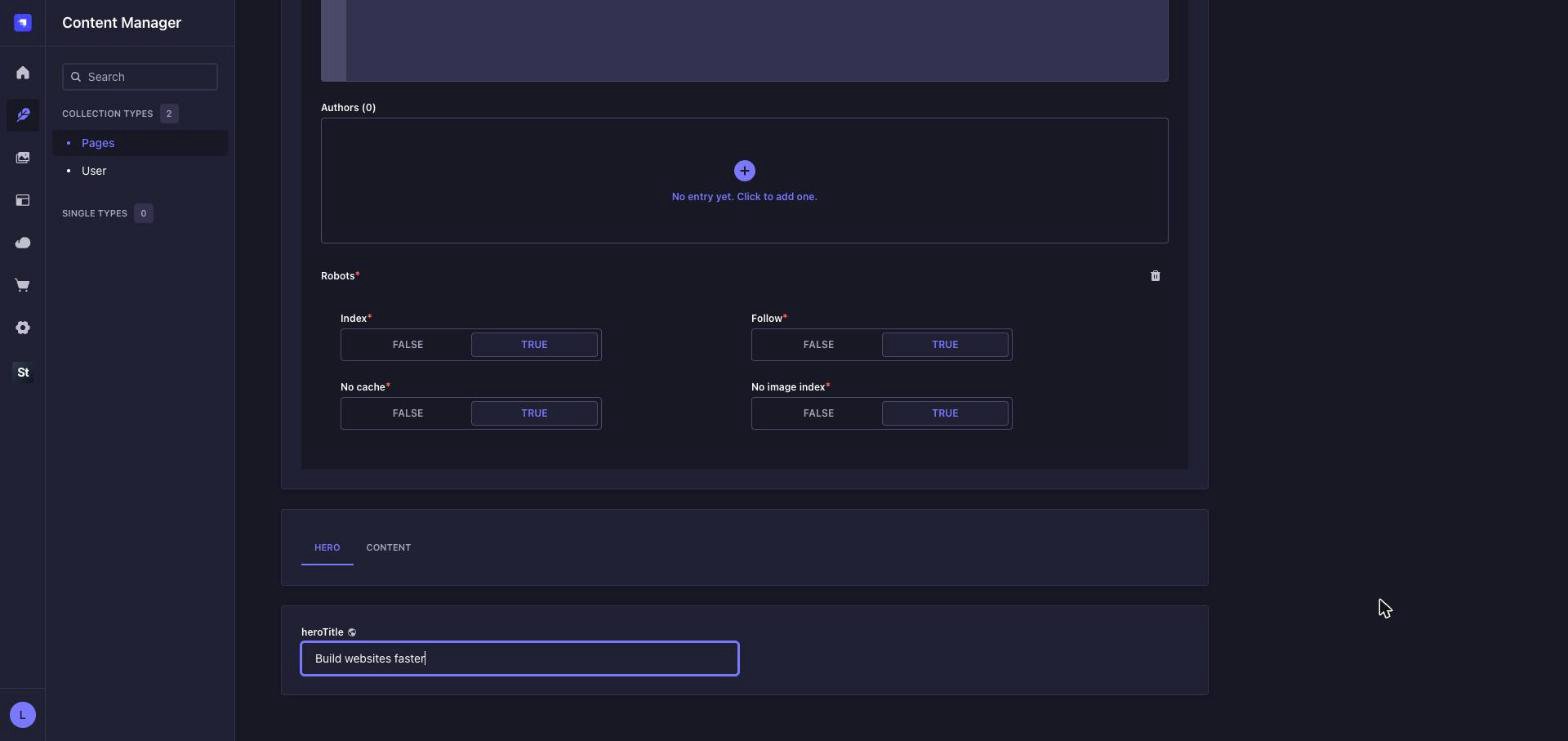
#ltbTab=content, which means a link to the document can open it directly
on a given tab.
API
The fields of each tab are returned inside a property named after the tab. The name is turned into a key: it is converted to lowercase, accents are removed, spaces become_ and any other special character is dropped. For
example, Hero becomes hero and Loja - Vitrine becomes loja_vitrine.
find and findOne requests of the REST API and to the routes of the
slug module, such as /api/littlebox-strapi-suite/modules/pages/home and
/api/littlebox-strapi-suite/modules/pages?slug=....
- Only the root level of the response is grouped.
filters,sort,fieldsandpopulatekeep using the original field names, for examplepopulate[0]=body, notcontent.body. - A tab whose key matches the name of a field, such as
title, or a reserved key, such asid,documentIdorlocale, is not grouped and a warning is written to the server log. In the field settings, these tabs are marked as conflicting and cannot be picked. - Writes through the REST API and GraphQL are not affected: fields are always sent with their original names.
Frontend
Learn how our frontend streamlines integration with Strapi by automating repetitive tasks.
Hosting
Explore our hosting solutions for staging and production environments.