

Before you start
- Add the target language in Settings → Internationalization. The source is always the default language, so you need at least one other language.
- Turn on internationalization (i18n) for the content types you want to duplicate. Content types without i18n have no language, so the duplication leaves them alone.
- To translate the texts, turn on “Translate with artificial intelligence” and save an OpenAI API key in the AI translation settings. The duplication uses the same key and model. Without them, the content is still copied, but with the original text.
- Give the “Duplicate content” permission to the roles that should use it (see Permission). Super Admins have it by default.
Duplicate the content
Step 1: Access the Strapi admin panel.Step 2: Go to the Littlebox Strapi Suite.
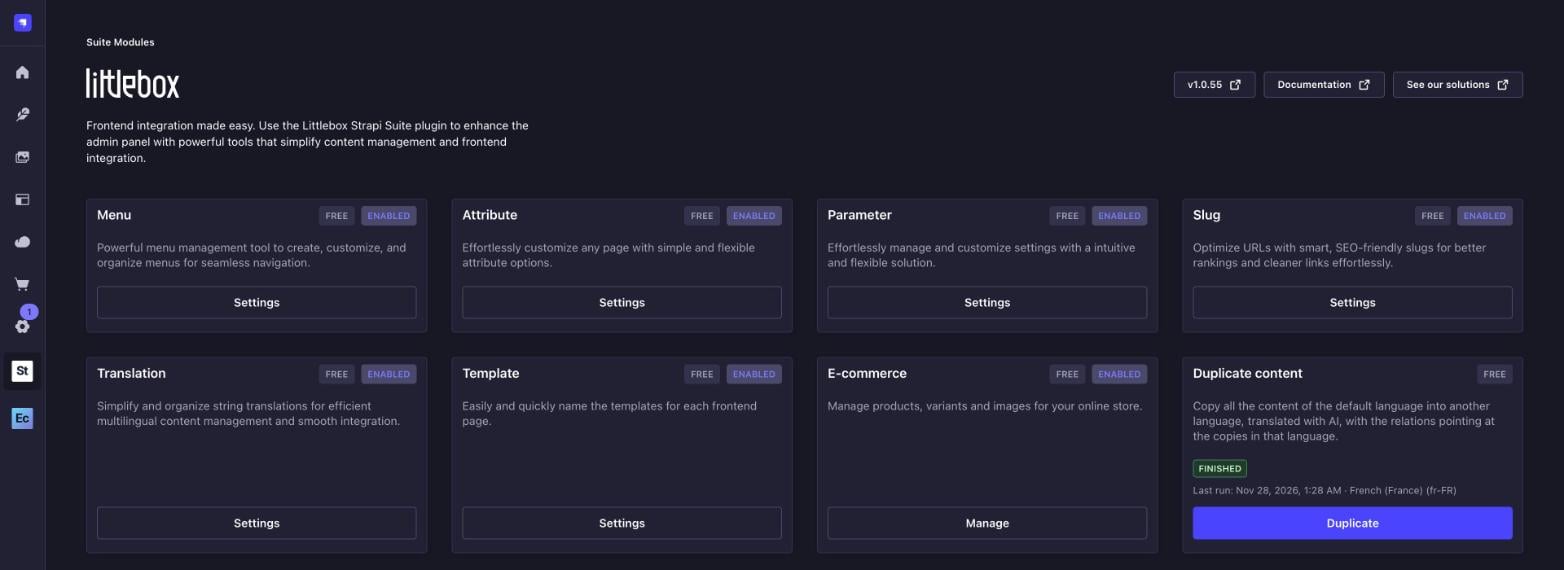
Step 3: On the “Duplicate content” card, click “Duplicate”.
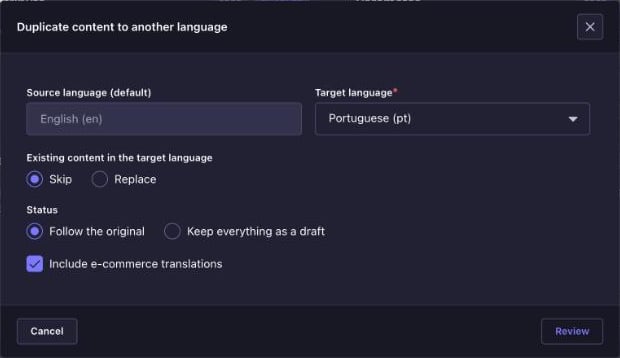
The default language of Strapi. It can’t be changed: the duplication always starts from the default language. Target language
The language that receives the copies. You can choose any configured language other than the default one. Existing content in the target language
What to do when a document already exists in the target language:
- Skip: leaves it as it is, status included. It is still used as the related document for the other copies.
- Replace: turns it into a translated copy of the default language. Every translated field takes the value of the original, including empty ones: a field that is empty in the original is emptied in the target.
Only for content types with Draft & Publish:
- Follow the original: a draft stays a draft and a published document is published. When a published document has newer changes in its draft, the copy gets both: the published version and the draft.
- Keep everything as a draft: every copy is saved as a draft only, so you can review it before publishing. With “Replace”, only the draft of an existing document is replaced. Its published version stays online until someone publishes the new one.
Shows only while the e-commerce module is on. It also duplicates the translations of products, variants, categories, collections and tags (name, slug, descriptions and SEO fields), and the e-mail templates customized in the default language. “Skip” and “Replace” work the same way for them. Step 5: Check the summary and click “Confirm”.
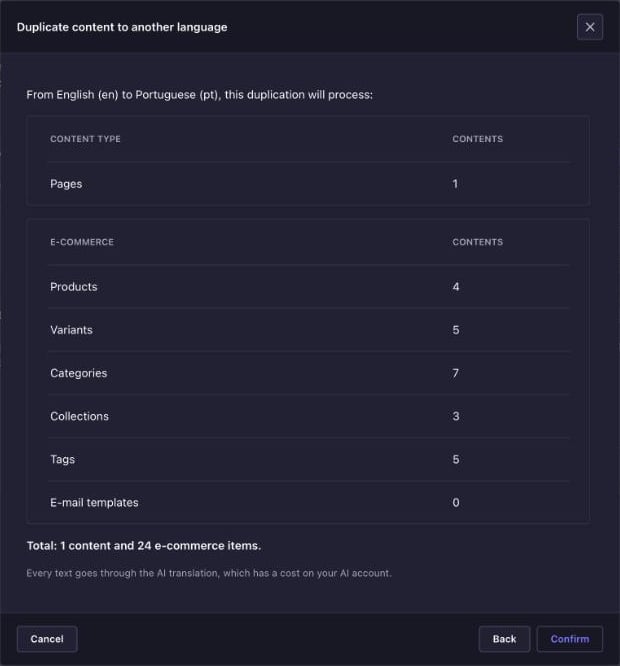
Every text goes through the AI translation. The translations are generated by the OpenAI account that owns the API
key, and each one is billed to that account.
Follow the progress
The duplication runs on the server and can take a few minutes. The window shows how many documents are done and which one is being processed.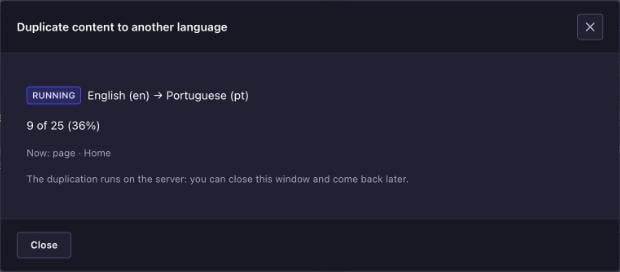
The report
When the duplication ends, the window shows the report.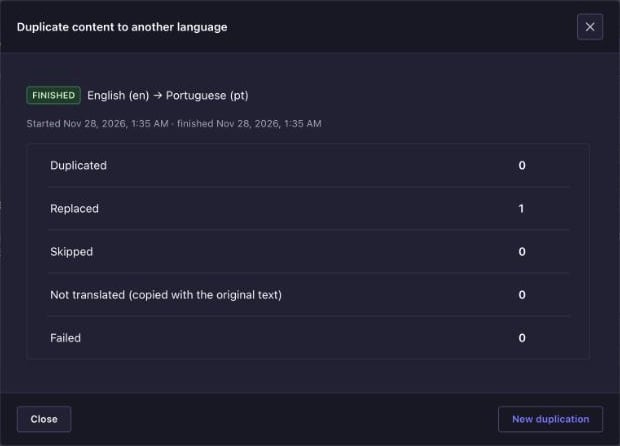
Click “New duplication” to start another one, for example into another language.
Failures and notes
A document that fails doesn’t stop the duplication: the others carry on. The report lists every failure with its content type, its title and the reason, so you can fix the document and run the duplication again.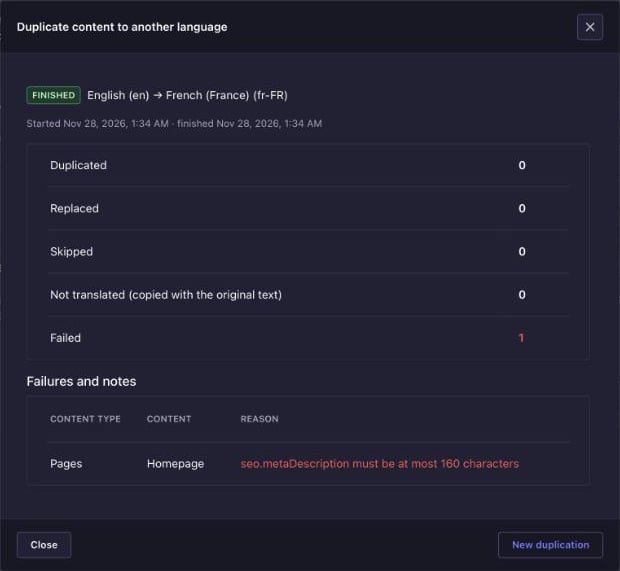
AI errors
When the AI returns errors, the report shows them in an orange box. The texts that couldn’t be translated are copied with the original text, and those documents count as “Not translated”.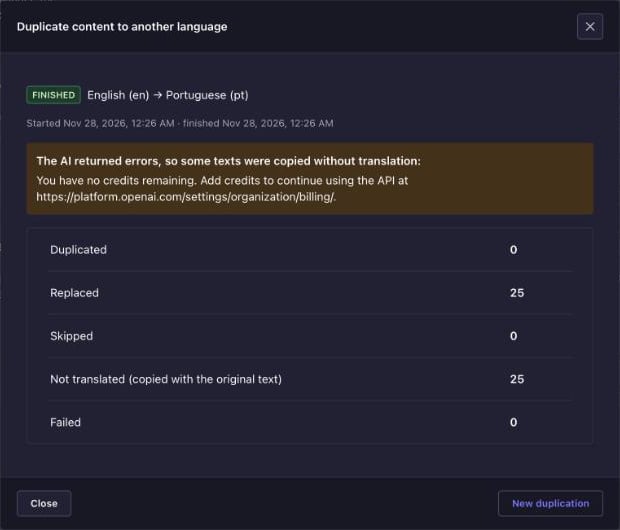
What is copied
Content typesEvery collection type and single type whose name starts with
api:: and has internationalization turned on.
Strapi’s own content types (such as users, the admin panel and the Media Library) and the plugin’s own content
types are never duplicated.
FieldsOnly the fields that are translated per language. Fields that are not localized are shared by every language, so they don’t need a copy. Translated texts
The same fields that Translate with AI translates: text, rich text and blocks. URLs and empty values are left as they are. Every translation respects the size of its field: the maximum length set in the Content-Type Builder, or 255 characters for a short text field without one. The AI is told the limit and rewrites the text shorter when needed. If a translation is still too long, it is asked again once; if it still doesn’t fit, that text keeps the original and the document counts as “Not translated”. Components and dynamic zones
Copied with everything inside them. Media and the image field
The copies use the same files. Nothing is uploaded again. Relations
A relation to a localized content type points at the copy of the related document in the target language. The duplication copies the related documents first, so the relation always has something to point at. When two documents point at each other, it creates one of them without that relation, copies the other one, then comes back and sets the missing relation. Relations to content types that are not localized are copied as they are. Slug and page attributes
The slug is translated and cleaned with the slug rules. If it is already in use, the slug module adds a number at the end to keep it unique. The parent page points at the parent’s copy in the target language. The template, priority and change frequency are copied as they are. Not copied
Menus, parameters and the plugin’s Translations module are not part of the duplication.
Permission
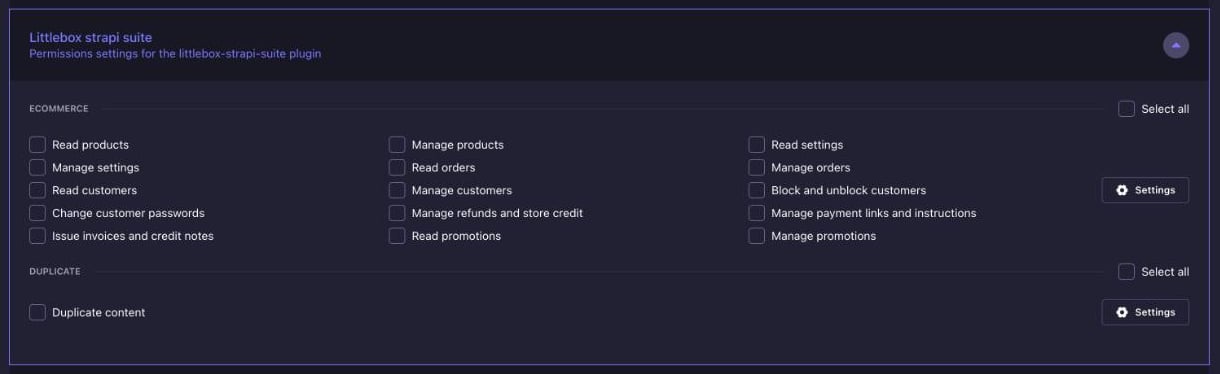
The feature has its own permission, so you can choose which roles can duplicate content. Step 1: Access the Strapi admin panel.Step 2: Go to Settings → Roles and open the role.
Step 3: Go to the Plugins tab and open “Littlebox strapi suite”.
Step 4: Under “Duplicate”, check “Duplicate content”.
Step 5: Click “Save”.
Good to know
- Run only one Strapi server while a duplication runs. A second server starting up marks the running duplication as “Interrupted”.
- Strapi keeps the report of the last 20 duplications.
- A duplication can’t be undone. Before the first run on a live site, take a backup of the database.