

- Every image goes through a crop with zoom, so you choose exactly which part of the image to keep.
- Strapi saves only the final image, as an optimized WebP file. WebP is a modern image format that keeps good quality at a much smaller file size than JPEG or PNG.
- You can set a fixed size, so every image of the field comes out with the same width and height.
thumbnail, small, medium and large).
Create the field
Step 1: Access the Strapi admin panel.Step 2: Go to the Content-Type Builder.
Step 3: Select the collection type, single type or component that needs the image.
Step 4: Click “Add another field”.
Step 5: Go to the Custom tab.
Step 6: Select “Littlebox Image”.
Step 7: Fill in the basic settings:
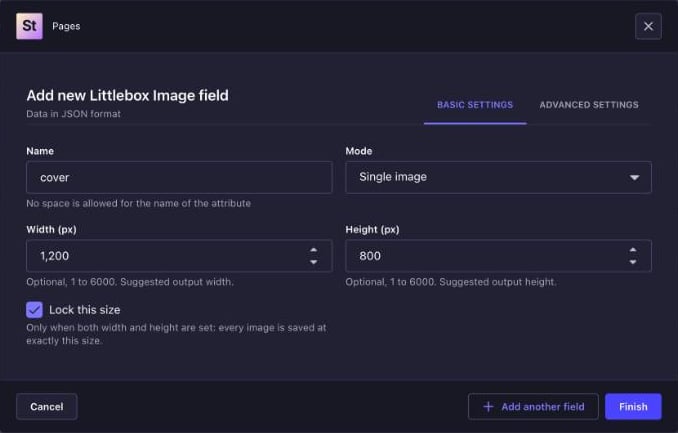
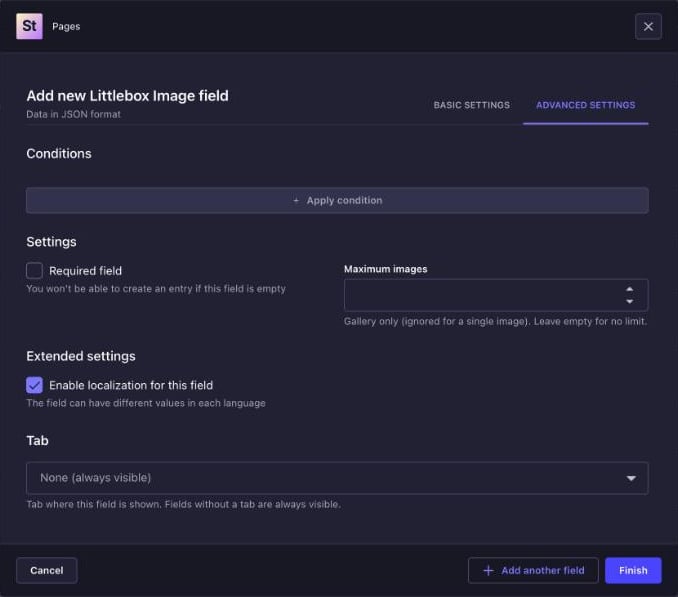
How the size settings work
If you change the size settings later, Strapi keeps the images you already saved as they are.
Add an image
Step 1: Open a document in the Content Manager.Step 2: In the image field, click “Add image”.
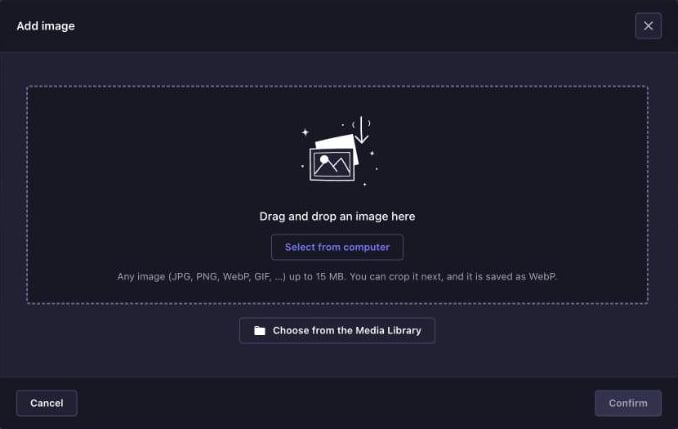
Step 3: Choose the source of the image:
- drag an image into the window, or click to choose a file from your computer;
- or click “Choose from the Media Library” and pick an image that is already there.
Step 5: Type the alternative text of the image.
Step 6: Click “Confirm”.
Step 7: Save the document.
Crop the image
The crop area has a fixed frame. The part of the image inside the frame is the final image.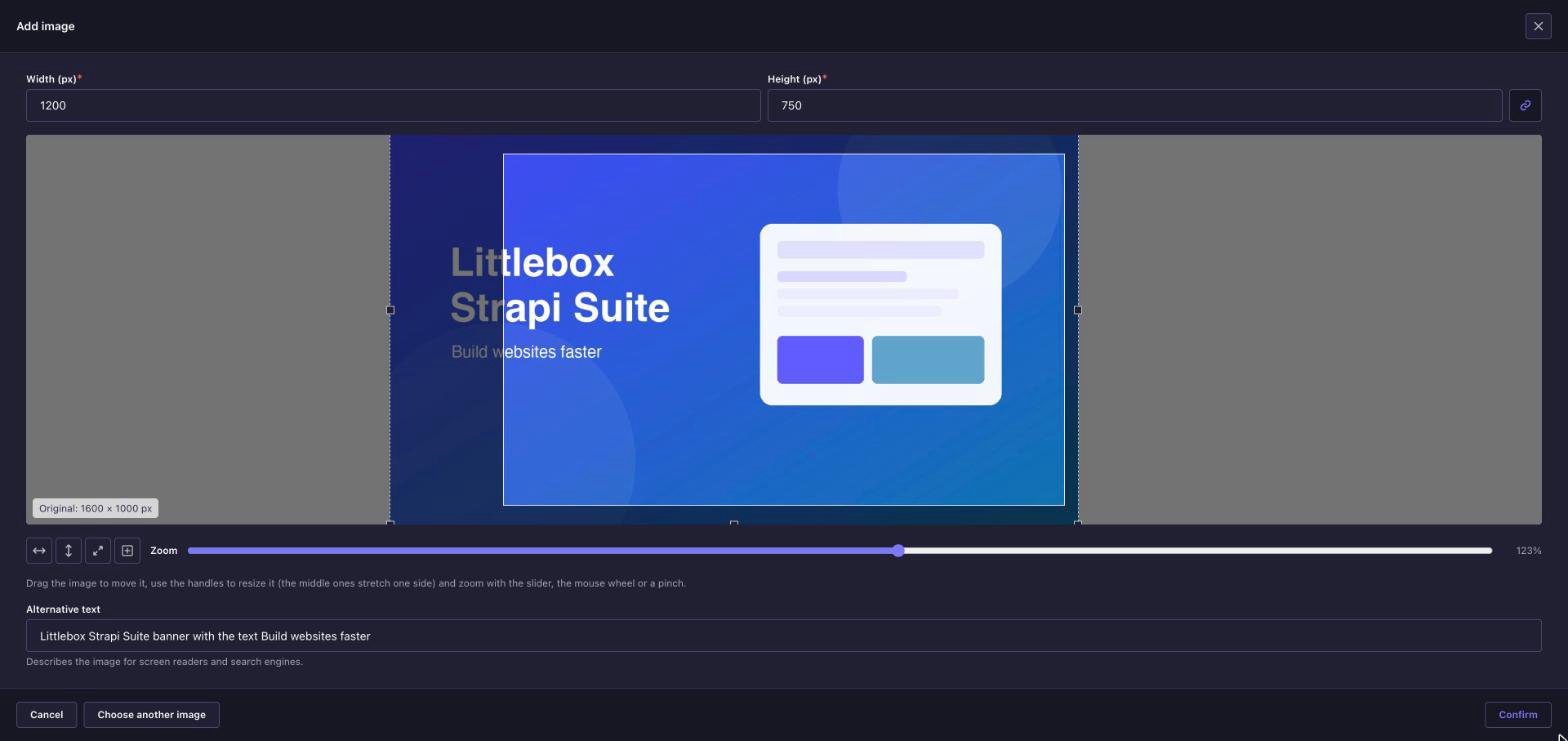
- Move the image: drag it. The arrow keys move it 1 px, or 10 px with Shift.
- Zoom: use the slider, the mouse wheel or a pinch on the trackpad.
- Resize: drag the handles around the image. The corner handles keep the proportion of the image. The middle handles stretch one side only, which deforms the image.
- Width and height: type the final size of the image. While the size is free, the “Keep proportion” button links both values, so changing one updates the other.
A thin red line shows up when the image is centered in the frame. Near the center, the image snaps to it.
The editor warns you about three things:
- The image doesn’t fill the frame. You can’t confirm until there are no empty parts. Zoom in or move the image.
- The image is deformed. Its width and height are not scaled equally. You can still confirm.
- The image will lose quality. The cropped part is smaller than the final size, so Strapi enlarges it. You can still confirm.
Manage the images
Single image: the field shows the image, its size and its alt text, with three actions: “Replace”, “Edit alt text” and “Remove”. Gallery: the field shows the images as thumbnails.- Drag the thumbnails to change their order.
- Click “Add image” to add another one. The button hides when the gallery reaches its maximum.
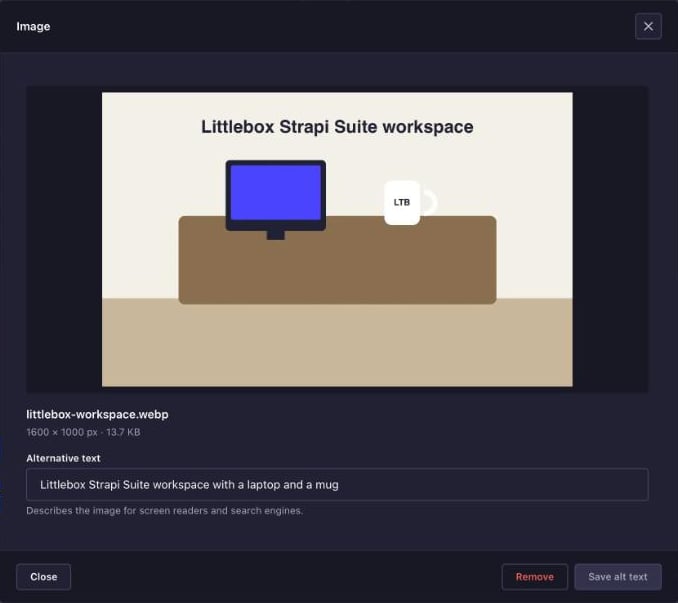
- Click a thumbnail to open its details. There you see the image and its size, change its alt text and click “Save alt text”, or remove it.

Unused files
The field deletes the files it created once nobody uses them, so the Media Library doesn’t fill up with old crops:- When you remove or replace an image and save the document, Strapi deletes the old file.
- When you delete a document, Strapi deletes its image files.
- When you crop an image but never save the document, Strapi deletes that file after 24 hours.
Permissions
Editors need these Media Library permissions to use the field. Set them in Settings → Administration Panel → Roles → Plugins → Upload:API
The field doesn’t needpopulate. The API always returns it, with the same shape as Strapi’s media field.
In single mode, the value is one image or null:
null or [].