

Create an order
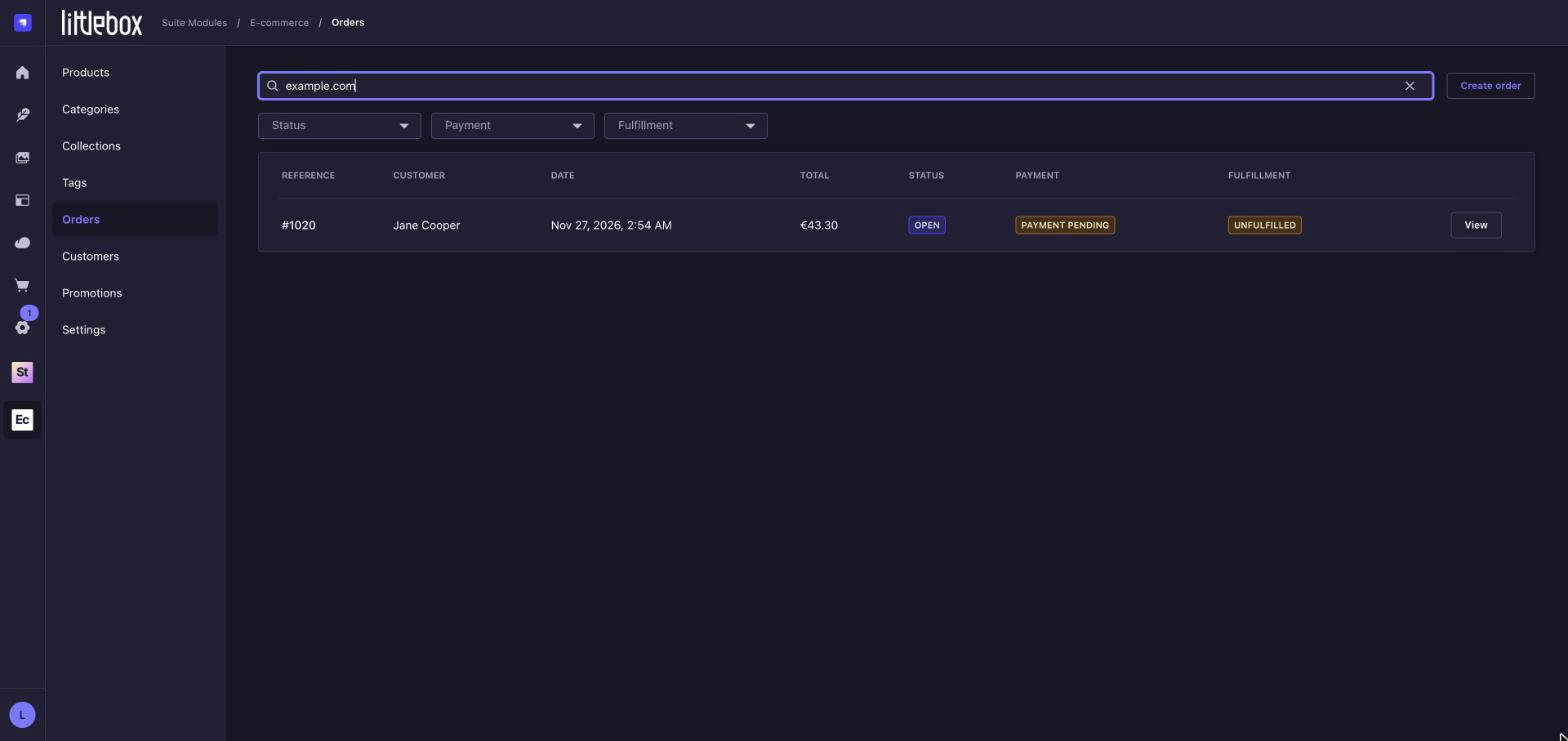
You can create an order for a customer, for example a phone order. Step 1: Go to “Orders” and click “Create order”.Step 2: In “Customer”, click “Add customer”. Search by e-mail or name, or fill in the form, and choose the “Language”. Choosing an existing customer also fills in their last addresses. You cannot create an order for a blocked customer.
Step 3: Click “Add shipping address” and fill in the address. Then click “Add billing address”, or “Billing same as shipping” to copy it. The billing address can include the company and the tax ID (NIF).
Step 4: In “Products”, search by product name or SKU, click “Add”, and set the quantity. You can type a “Discount %” for a line.
Step 5: In “Shipping”, click “Add shipping”. Choose a method quoted for this cart and change the price if you need to. For DPD Pickup, search a pickup point by postal code. For store pickup, choose the store. The first shipping line is the delivery method of the order.
Step 6: In “Promotions and discounts”, nothing is applied by itself. Click “Apply discount” to choose the automatic promotions that apply to this cart, “Add code” to apply promotion codes, or “Add discount” to add a manual discount with a reason.
Step 7: Check the totals at the top and create the order.
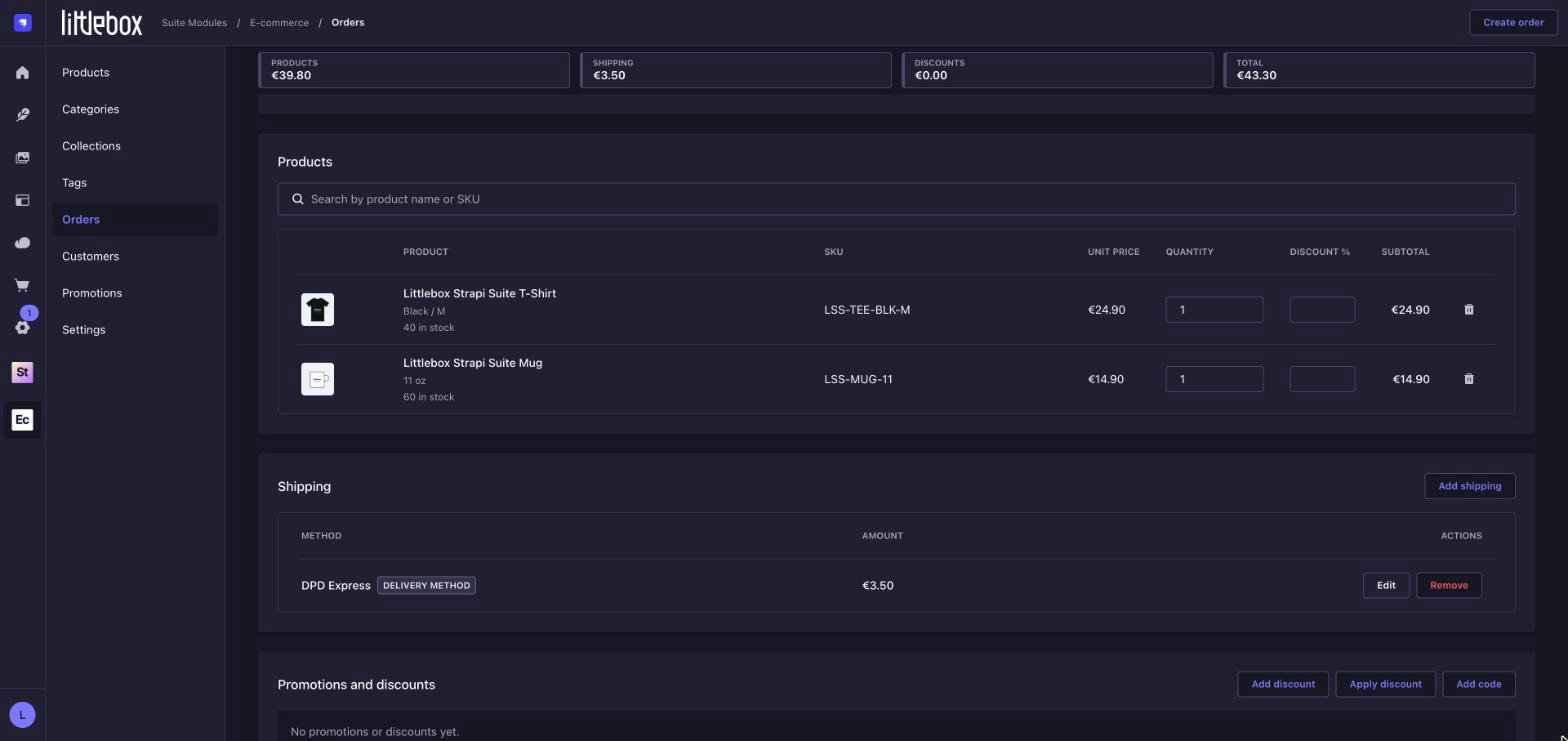
The totals are a preview. If they change when the order is created, for example because a price changed, the page
shows the new total and asks you to confirm again.
Duplicate an order
On the order detail, click “Duplicate”. The “Create order” page opens with the customer, the addresses, the language, the products (minus returned units), the manual discounts, the promotion codes, the gift choices and the shipping method of the original order. Prices, promotions and shipping are calculated again. Payments, invoices, shipments, returns, refunds and history are not copied. The page tells you about any product, code, gift or method that is no longer available.Order detail
Click “View” on an order.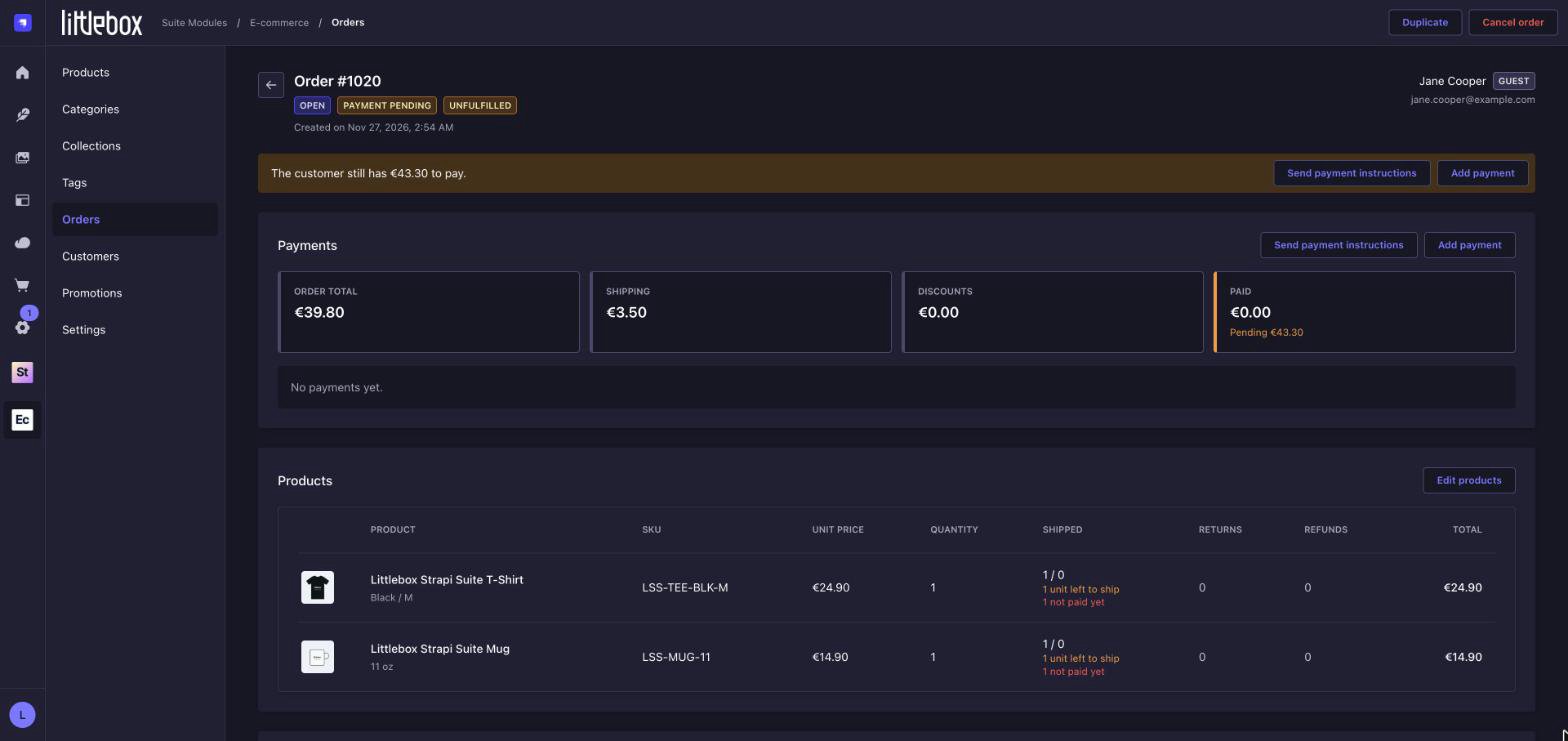
- “The customer still has … to pay”, with “Send payment instructions” and “Add payment”;
- “The payment link sent to the customer is no longer valid”, when the order changed after you sent it;
- “The customer paid … more than the order now costs”, with “Refund”;
- “Shipping may need to be recalculated” or “Discounts may need to be reassessed”, after an edit. Click “Go to section” to fix it, or “Dismiss”.
Payments
The summary shows the order total, what was paid and what is due or refundable. The table lists every payment with its method, amount, transaction ID, status (“Pending”, “Completed”, “Cancelled” or “Failed”) and date. Add paymentRecords money you received outside Stripe.
- Manual payment tab: type the “Amount received”, the “Reference or transaction ID” and the “Payment method”, for example “Bank transfer”. The method appears on the invoice, and the window suggests the methods you used before.
- Store credit tab: type the customer’s “Store credit code”. It pays the amount due, up to its balance, and must belong to the order’s customer e-mail.
Asks the customer to pay the amount due. Choose how:
- Manual instructions: pick a method (“Bank transfer”, “MB WAY” or “Multibanco reference”) or type one, and edit the “Instructions for the customer”, for example your IBAN.
- Stripe payment link: the customer receives a Stripe link to pay the amount due. You can also copy the link.
Products
The table lists every line with its photo, SKU, unit price, quantity, shipped units, returns, refunds and total. Promotional gifts and line discounts are marked. Edit productsChange quantities, add products or remove lines. A summary tells you whether the customer will have more to pay or a refund. Shipping and discounts are not changed, but you are warned when they need a review.
- Products already shipped cannot be removed.
- Products already invoiced cannot be removed.
- Editing is closed while a carrier shipment is still pending.
Promotions and discounts
Lists the promotions applied to the order, the manual discounts and the codes that did not apply, with the total discount. Add discountAdds a manual discount: a “Fixed amount” or a “Percentage” of the products not yet invoiced, with a “Reason”. Recalculate discounts
Checks the promotions against the order as it is now. It groups them in “Applied and still valid”, “Applied but no longer valid”, “Would apply now” and “Manual discounts”. You tick the new promotions to keep and confirm.
Recalculate discounts only adds. The discounts already applied are kept as they are, even when they are no longer
valid, and it never changes lines already invoiced. To take a discount away, remove it yourself. You cannot remove a
discount that is already invoiced.
Removes a promotion or a manual discount. The window tells you how much the total goes up, and which gift units are removed with it.
Shipping charges
The shipping lines of the order, with their method, date, amount and status (“Paid”, “Invoiced” or “Unpaid”). Three figures sit above the table: “Charged” (what the charges add up to now), “Invoiced” and “Quote” (what the shipping would cost now). Recalculate shippingAsks “What should be recalculated?”:
- The whole order: quotes every product with the original method and compares with what was paid.
- The products still to ship: creates a new charge for the products not shipped yet, with a method you choose.
- Choose products: creates a new charge for the products you pick.
Add a charge by hand, change its price, or remove it. Recalculating never removes charges, and invoiced charges are never edited or removed. To lower a paid or invoiced charge, make a refund and issue a credit note. Mark as seen
Hides a shipping alert you already checked.
Shipments and deliveries
ShipStep 1: Click “Ship”.
Step 2: Set the “Quantity to ship” of each product. Only paid units appear.
Step 3: Check the “Delivery method”. “Original” marks the method the customer chose.
Step 4: For DPD, set the number of “Parcels”.
Step 5: Click “Ship” and confirm. With a carrier, the module creates the shipment at the carrier, which returns the tracking code and the label. With a manual method, you type the tracking code and link. With store pickup, the units are made ready for pickup at the store. In every case, the customer is notified. Each shipment shows the carrier, the items, the tracking, the status and the delivery. Its actions menu offers:
- Confirm delivery: records when the parcel reached the customer. The customer is e-mailed once the whole order is delivered.
- Edit tracking: changes the “Tracking code” and “Tracking link”. The customer receives “Tracking updated”.
- Refresh tracking: reads the latest status from the carrier.
- Label: downloads the carrier label.
- Retry: asks the carrier again when it did not answer. It uses the same reference, so it never creates two shipments.
- Cancel: cancels the shipment, at the carrier first when possible. Its units go back to “left to ship” and the stock does not change.
- Mark as failed: only after you check that the shipment is not in the carrier portal. Its units can be shipped again.
- Events: the history of the shipment.
Change the delivery address, the pickup point or the store from this section. It is locked once the order has shipments, while a shipment is pending, and when the order is cancelled or archived.
Invoices
Generate invoiceOpens the selection of what to invoice. Tick:
- the Products: whole units with the discounts applied to them;
- the Shipping: whole shipping charges;
- the Discounts: the order and shipping discounts;
- the Payments that this invoice covers.
- Download PDF.
- Reconcile: looks the document up at the billing provider when its outcome is unknown.
- Mark as failed: only after you confirm in the billing provider that the document does not exist.
- Credit note: issues a credit note on this invoice. Choose the “Reason”:
- Return: credits returned units, which are not invoiced again;
- Correction: cancels the whole invoice, so its products, shipping and payments can be invoiced again;
- Shipping adjustment: credits shipping invoiced above what the order now charges.
- Read more: the message of the billing provider.
Change the billing address from this section. It is locked once the order has an invoice, and when the order is cancelled or archived.
Returns
Register returnStep 1: Click “Register return”.
Step 2: Set the “Quantity to return” of each shipped product, and tick “Return to stock” to put the units back.
Step 3: Type the “Reason” and the “Notes”.
Step 4: Check the “Value to refund” and click “Register return”. A return does not refund by itself. Click “Refund now” in the result, or use “Refund” later.
Refunds and credits
RefundStep 1: Click “Refund”.
Step 2: Choose “What is refunded”:
- Overpayment: money paid above the order total. The total does not change.
- Invoiced value: tick the invoiced elements to give back, as whole product units and whole shipping lines. The amount to refund is their sum, and the order total goes down by it.
Step 4: Choose the “Refund method”:
- Bank transfer: you make the transfer yourself and type its reference. The module only records it.
- Store credit: a store credit code is issued for the customer’s e-mail, with “Valid until” and “Conditions”.
- Stripe: Stripe gives the money back to the customer’s card. The status updates when Stripe confirms it.
- View: the details and the refunded elements.
- Refresh status, Resume and Mark as failed: for a Stripe refund with an unknown outcome. Check the Stripe dashboard first.
- Credit note: issues the credit note of an invoiced value refund. It credits exactly the refunded elements.
- Remove: only when the money did not reach the customer. The order total goes back up.
Notifications
Lists every e-mail sent for the order, with the recipient, the status (“Sent”, “Failed”, “Skipped” or “Sending”) and the date. Click “Read more” to see why an e-mail failed, and “Resend” to send it again.History
A timeline of everything that happened on the order: creation, status changes, edits, payments, shipments, returns, refunds, invoices, promotions and e-mails. Each entry shows who did it: an admin, the storefront, a webhook or the system.Archive and cancel
ArchiveCloses an order that is finished: fully shipped, every shipment delivered, nothing due and nothing to refund. An archived order can no longer be changed, and invoices can no longer be issued from it. Cancel order
Cancels an open order. Its stock is put back and store credit used on it returns to the voucher. No money is refunded automatically: refund any payment separately. The customer receives the “Order cancellation” e-mail.