

Create a promotion
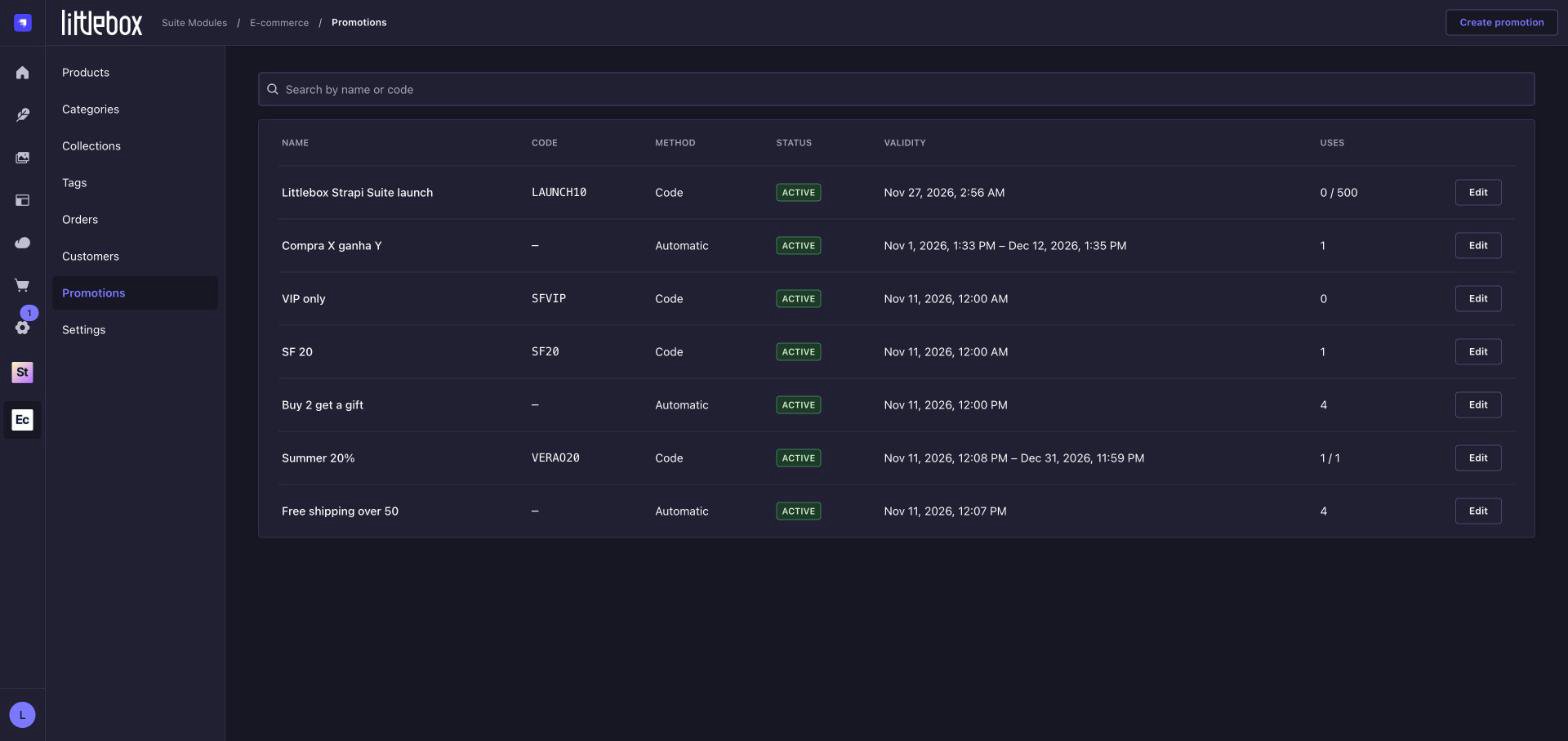
Go to “Promotions” and click “Create promotion”. The form has these sections, and the “Summary” describes the promotion in plain words as you fill it in.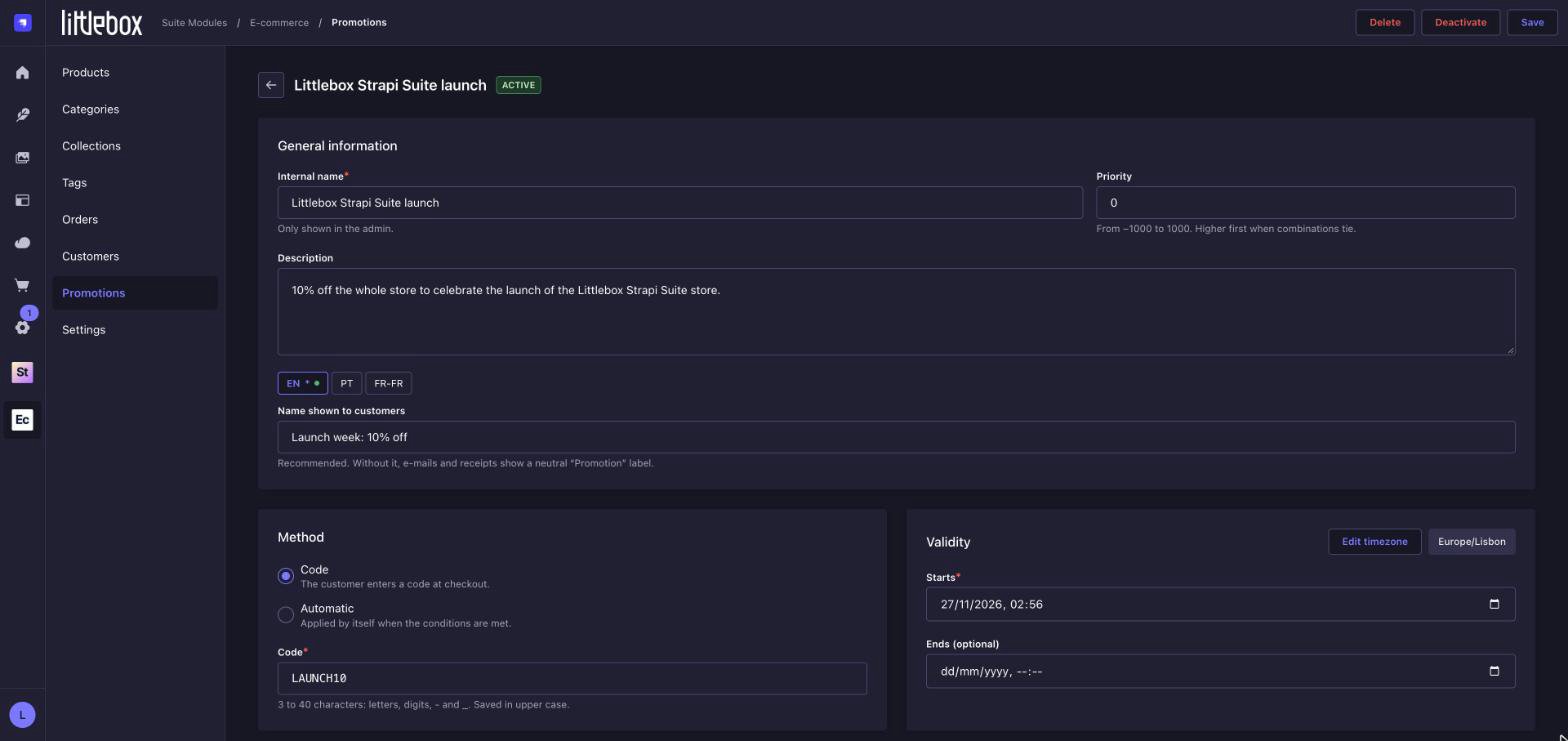
- Internal name: only shown in the admin, for example “Summer Sale 2026”.
- Name shown to customers: shown in e-mails and receipts, for each language. Without it, they show “Promotion”.
- Description: an internal note.
- Priority: from −1000 to 1000. Higher goes first when two combinations tie.
- Automatic: applied by itself when the conditions are met.
- Code: the customer enters a code at checkout, for example
SUMMER10. It has 3 to 40 characters (letters, digits, hyphens or underscores) and is saved in upper case. - Campaign identifier: an optional label for reports. It never works as a code.
”Starts” and “Ends (optional)”, in the store time zone. Eligibility
”All customers” or “Specific customers”. For specific customers, search by name or e-mail and add up to 1000. Conditions
Without conditions, the promotion applies to any cart. Add conditions in scenarios: the promotion applies when every condition of at least one scenario holds. Click “Add condition” to add one to a scenario (AND), or “Add scenario” for another set (OR). The conditions are:
- Cart subtotal and Cart subtotal between: the items at their original price, without shipping or gifts;
- Cart contains: any of, all of or none of some products or variants;
- Quantity of products: the units of some products;
- Total number of items;
- Number of different products;
- Customer e-mail: is, is not, contains or does not contain a value.
Add between 1 and 10 benefits:
- Product discount (%) and Product discount (fixed amount): on the products you choose. A fixed amount applies “To each unit” or “To the set (split between the units)”. “Maximum discounted units” limits it.
- Buy X get Y: see below.
- Order discount (%) and Order discount (fixed amount): on the whole order.
- Free shipping, Shipping discount (%) and Shipping discount (fixed amount): “Maximum shipping covered (€)” limits it.
”Total uses”, “Uses per customer” and “Repetitions per order”. Empty means no limit. Stacking
Whether the promotion combines with others. “Exclusive” never combines. Otherwise, tick “Combines with product discounts”, “Combines with order discounts” and “Combines with shipping discounts”. Two promotions combine only when each allows the other’s class. Usage
The orders that used the promotion, with the customer, the discount and the date. Click “Save”, then “Activate”. A promotion is only applied while it is active and valid.
Buy X get Y
What the customer buysThe products that count toward the purchase, the “Quantity”, and an optional “Minimum spent on these items (€, optional)”. What the customer gets\
- Items in the cart: items the customer already added to the cart get the reward.
- A gift added to the order: a gift line from the “Gift variants (up to 20)” you choose. When there are several, the customer picks one.
”Free”, “Percentage off” or “Fixed amount off each”.
Each benefit of a promotion is independent. The “buy” requirement of a Buy X get Y benefit only gates its own gift or
reward. The other benefits of the same promotion still apply when their own conditions hold. The “buy” requirement
always applies, even when the promotion has no conditions.